Part II · Instance setup
Copilot
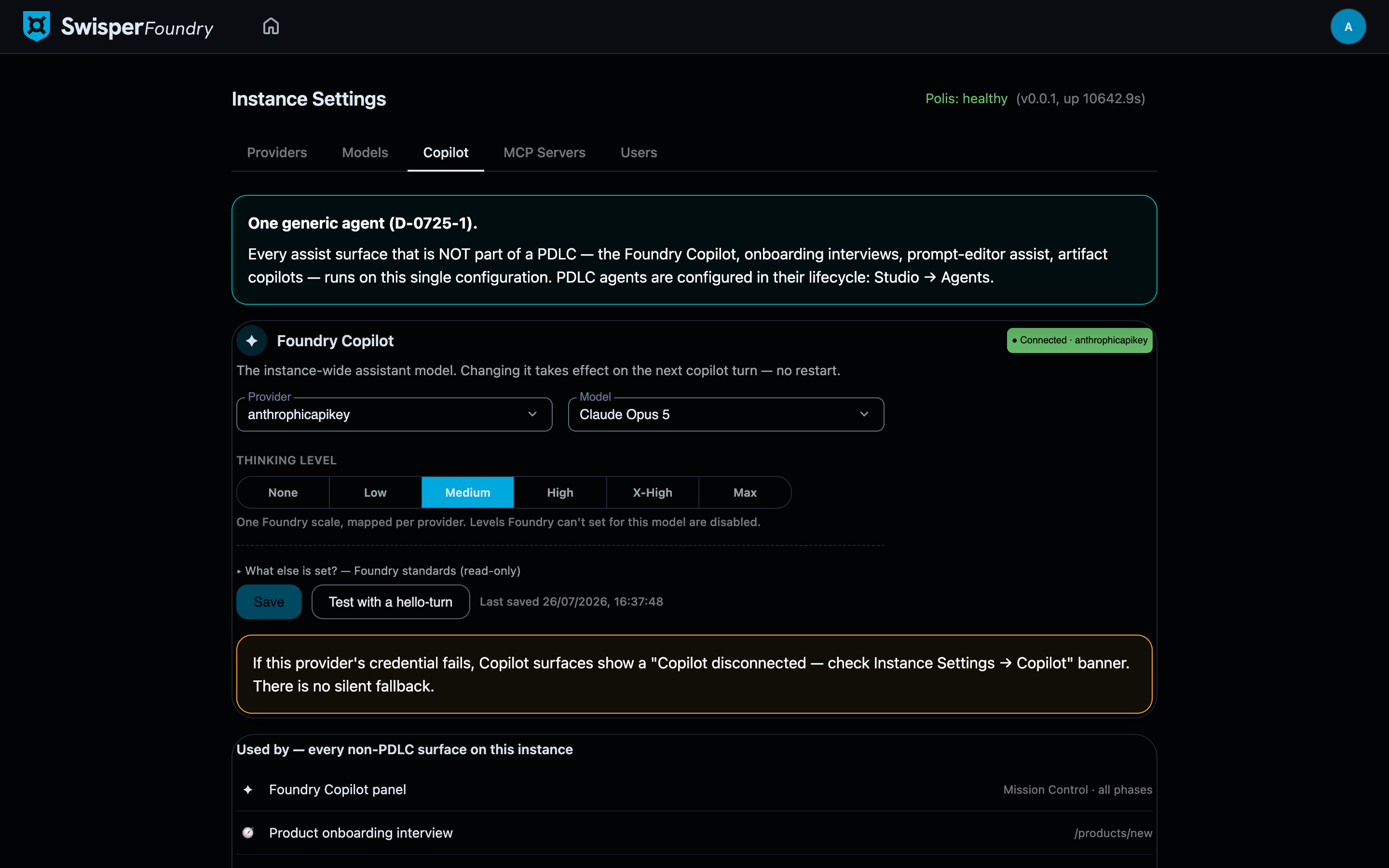
Foundry has exactly one generic assist agent, and this tab configures it. Every non-lifecycle assist surface runs through it:
- the Foundry Copilot panel (the side-panel assistant),
- the product onboarding interview at
/products/new, - prompt-editor assist (reviewing and improving agent prompts),
- the artifact copilot.
The tab shows this as a "Used by" list, so it is always visible what you are changing when you change this config. One agent instead of four means one model bill to reason about, one behaviour to trust, and one place to look when an assist surface misbehaves. Note that the list names every surface wired to this config, including staged ones — the Mission Control side panel shows the Copilot frame today but its composer arrives with the product-copilot backend.
Provider and model
Pick a provider config and a model. One constraint applies: the Copilot's assist path speaks the Anthropic Messages API directly, so the chosen provider must be one with the anthropic API schema. A provider with any other schema is rejected with an explicit error rather than silently degrading.
The provider's live status (exists / enabled / schema supported) is shown next to the picker, so a broken selection is visible before anything fails downstream.
Thinking level

The thinking (reasoning) level is a ladder with six steps: None / Low / Medium / High / X-High / Max.
This is one Foundry scale, mapped per provider — vendors expose reasoning effort in incompatible ways, so Foundry defines a single ladder and translates it to whatever each provider supports. What the control offers is probe-driven from the model catalog: levels the selected model cannot honor are disabled, not hidden, so you can see the full scale and exactly where this model stops.

And when Foundry has no probe data for the selected model at all, the control says exactly that — "Foundry hasn't probed this model yet — refresh models in Instance Settings" — and shows the saved level with an explicit unverified caveat, rather than offering a ladder it cannot vouch for. A model refresh on the Models tab fills in the support data.
Two things worth knowing about the semantics:
- None genuinely disables reasoning — it is stored as an explicit "off", because an unset value would fall back to the runtime default and silently re-enable thinking.
- Temperature is not configurable here by design; the Copilot never writes a temperature. Reasoning-capable models require their default temperature — this is a prerequisite of the model family, not a hygiene preference.
Test with a hello-turn
The Test button runs a real hello-turn through the configured provider and model — the same path every assist surface uses. If it works here, the Copilot panel works.
Failure contract: loud, never silent
If the configured provider is missing, disabled, or has no usable key, every assist surface shows the same banner:
Copilot disconnected — check Instance Settings → Copilot
There is no silent fallback to another provider or model. This is deliberate: an assist agent that quietly switched backends would change cost, data routing, and behaviour without anyone deciding it. A red banner pointing at this tab is the correct failure mode; the symptom-to-fix table is in Troubleshooting.