Part IV · Products
Creating a product (the onboarding saga)
A product in Foundry is the thing you are building: it owns a repository, a team, its knowledge registers, and exactly one lifecycle. Creating one is a two-act story. Act one is a short form — a name, a repo, and the model providers the product may think with. Act two is the onboarding saga: Foundry inspects the repository, proposes a development-environment profile, asks you to confirm it, writes a setup pull request, and then verifies that the environment it just described actually works. Only after verification does the product become operational.
The saga exists for one reason: execution agents need a dev environment they can trust. When an engineer agent later runs your tests, lints your code, or starts your dev server, it does so with the commands captured here. A wrong or invented command at setup time becomes a confusing red X at execution time — so the saga is built around evidence, confirmation, and honest failure.
About the visuals on this page
The illustrations below are mixed, and each one says which it is. A Live rig badge means the screenshot came from the running build. A Design mock badge means it comes from the binding design mocks for a stage that is designed but not yet shipped — the caption says so. Mocks are replaced with live shots as each stage lands, so a mock badge on this page is a statement about the product, not about the screenshot.
The front door
/products/new opens with a question, not a form. Nothing else appears until you answer it — because everything that follows depends on where your idea lives today:
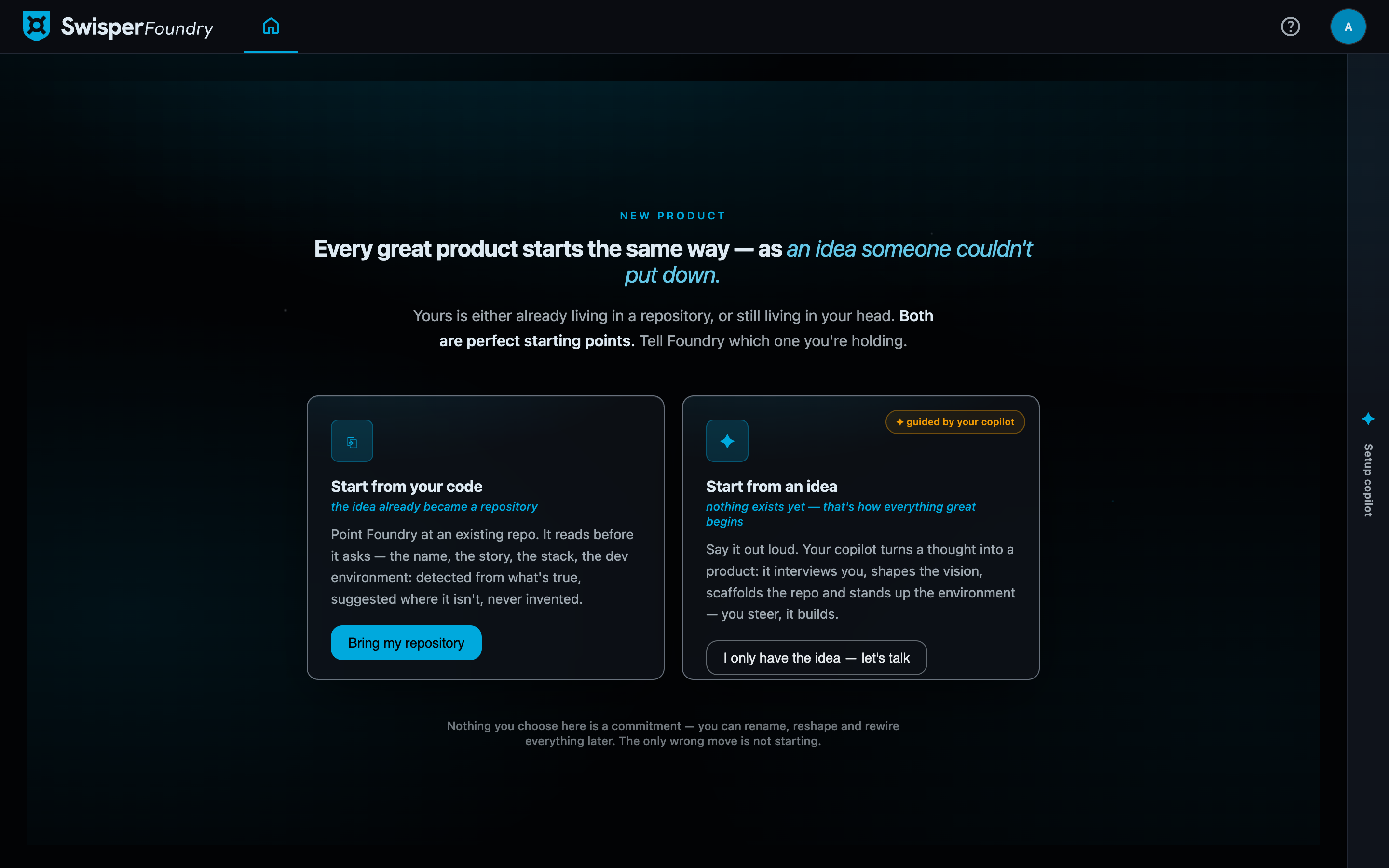
- Start from your code — the idea already became a repository. Foundry reads before it asks.
- Start from an idea — nothing exists yet. The door carries a guided by your copilot badge, and describes where this path is going: a copilot that turns a thought into a product.
The door you pick is stamped on the product at creation, and it decides which kind of onboarding you get: detection-driven (import) or interview-driven (scratch).
What the idea door does today
Picking Start from an idea takes you to the short creation form described below — you name the product, say what it is in a sentence, and Foundry creates the repository. The copilot interview is real, but it starts after the product exists, as the first stage of the saga.
The conversational front door — where you describe the idea to your copilot and it shapes the vision before anything is created — is designed but not yet built. Until it is, the door is a fork in the road, not a conversation.
Start from your code: the repo-first flow
Pick the repository (listed via your GitHub PAT from My Account → GitHub identity, or paste any git URL under advanced) and Foundry reads it — then asks you to confirm an identity it already filled in:
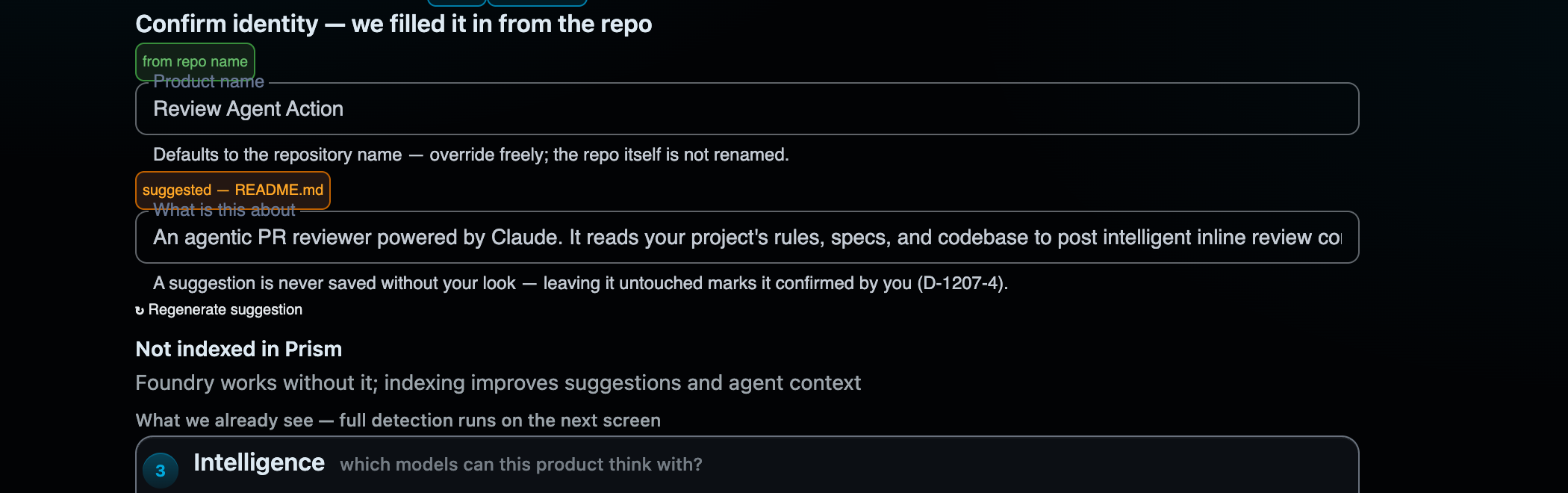
Three rules govern the pre-fill, and they are the same honesty rules the whole saga runs on:
- Provenance is visible. The name carries a from repo name chip; the summary carries suggested — README.md with a regenerate button. You can override both freely — the repo itself is never renamed.
- A suggestion is never saved without your look. Leaving a suggested field untouched marks it as confirmed by you; it does not slip through unseen.
- Failure means empty, never invented. If the suggestion cannot be produced (no README, timeout), the field is simply empty — Foundry does not make something up for you to accidentally approve.
The code branch agents clone from comes from the repository row (its default branch, changeable). Below the identity sits the Intelligence block — which of the instance's configured providers this product may use, with exactly one default; the footer tracks readiness and says plainly that nothing is saved yet.
Start from an idea: the form today
The scratch door leads to a short three-part form: Identity (a name and the idea in a sentence), Code (a repository created for you — owner, name, visibility, via your PAT), and Intelligence (provider selection). There is deliberately no license or tech-stack question here — those are interview questions, and the license lands with the scaffold commit, not with the empty repository. Once the product exists, the interview turns your answers into a scaffolded repo and a dev-environment profile.
The saga at a glance
Once the product exists, its Overview is taken over by the setup flow until the environment is operational. A stage tracker across the top shows four stages:
Detect → Confirm → Materialize → Verify
stateDiagram-v2
    [*] --> Detecting
    Detecting --> Confirming: profile proposed
    Confirming --> Materializing: Apply & verify
    Materializing --> Verifying: setup PR opened
    Verifying --> AwaitingMerge: all checks pass
    Verifying --> Failed: a check fails
    Failed --> Verifying: Re-run verification / Retry check
    Failed --> Confirming: Back to Confirm (revise)
    Failed --> Materializing: Re-apply
    Failed --> Detecting: Re-detect
    AwaitingMerge --> Operational: setup PR merged
    Operational --> [*]
The saga is a loop, not a one-shot pipeline. Every state declares which actions are legal from it, and the UI renders exactly that set — a failed setup can always be repaired inside the product. Deleting the product and starting over is never required and never suggested. You can also navigate back to any completed stage from the tracker (backward navigation is disabled while a job is running, so you cannot re-enter a stage mid-materialize).
A Setup copilot panel accompanies the whole flow — the same generic Copilot that powers assist surfaces elsewhere in Foundry, here scoped to onboarding questions.
Detect, then confirm
For the import door, detection clones the repo and reads the evidence: the package manager (npm, pnpm, bun, yarn, pip, uv), the scripts in package.json, compose files, scanners, CI. From that it proposes a dev-environment profile: how to install dependencies, how to lint, format, test, and start the dev server, and which services the app needs.
Two principles govern this step:
Commands are executable by construction. When a command comes from a package.json script, Foundry stores the mediated invocation (npm run lint), not the raw script body (biome lint .). Why it matters: the mediated form is what puts repo-local binaries on the PATH — it is the command your repo actually supports.
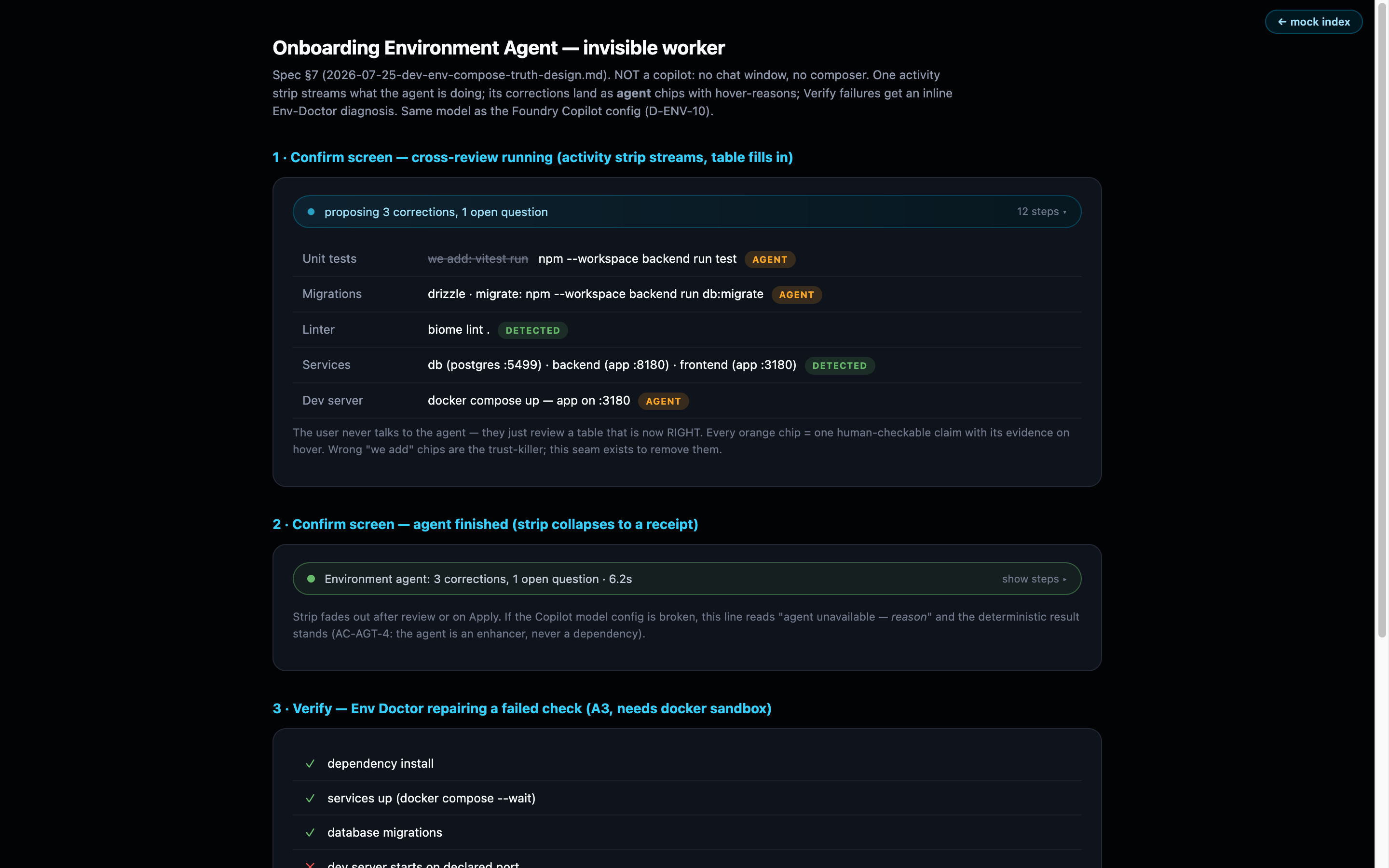
No fabrication. Every row carries a chip saying where its value came from, and the chip describes the value on screen — not the one detection originally found, so an edited value never keeps a detected chip:
| Chip | What it means |
|---|---|
| detected | the repository gave evidence for it |
| we add | Foundry is adding it; nothing in the repo asked for it |
| kept yours | it came from you rather than from evidence — including any value you typed over |
| you answered | you gave it in answer to a question |
The last two share a colour deliberately: both mean this came from you, not from evidence we gathered, and the label carries the distinction. If detection found no dev command, the Confirm screen shows an empty field with an open question — "What starts your dev server?" — rather than pre-filling a guess. Verification only ever runs detected and confirmed commands; an assumed command is skipped with the honest reason "not confirmed", never failed. Foundry will not invent a command and then grade your repository against it.
The Confirm stage shows the full proposed profile as an editable table. This is your gate: nothing is written to the repository until you apply.
Compose-derived dev targets
If your repository has a compose file that publishes an app service, detection may know the dev server's port without any command — the compose file already answered the question. In that case the Confirm screen does not ask what starts your dev server; it tells you what Foundry will do instead: probe the published port rather than run a command. The dev server counts as resolved either way — by a script Foundry will run, or by a port Foundry will probe. Only a genuinely unresolved dev server is an open question, and an open question is what Foundry asks you about.
An input field does not mean an open question. Every command row is editable, always — including rows where detection found nothing, and including rows it filled in confidently. That is deliberate: a command detection missed is exactly the case you have to be able to fix, and a row you cannot type into is a dead end. So do not read a screen full of input fields as detection having failed; read the chips for that. The chip tells you where each value came from; the field is simply how you change it.
The interview (scratch door)
For a brand-new repository the interview replaces detection. The questions — backend stack, frontend stack, database, license — are asked in the copilot rail as a fixed, structured sequence, and the main panel shows the resulting profile plus a preview of the scaffold commit: the exact files Foundry will create, each with a one-line summary. You confirm the scaffold the same way an import user confirms a detected profile: nothing lands in the repo until you say so.
Materialize: the setup PR
Applying the confirmed profile starts materialize: Foundry creates a setup branch, writes the setup files (including the foundry-gate.yml CI workflow), pushes, and opens a setup pull request against your default branch. The Confirm screen tells you in advance exactly how many files the PR will contain — the count comes from the same planner that writes them, so it cannot drift.
Why a PR and not a direct push? Because it is your repository. The setup PR is reviewable, revertible, and visible to your whole team — the same discipline Foundry applies to agent-written code later applies to its own setup files.
Materialize is idempotent by observation: before creating anything, it asks GitHub what already exists. If an open setup PR is already there (say, from an earlier attempt that was interrupted), Foundry adopts it and updates the branch instead of failing with "a pull request already exists". Re-running any stage, any number of times, never produces a collision.
After verification passes, the saga parks in Awaiting merge until the setup PR is merged — then the product is operational.
Verify: the checks
Verification clones the repository and runs the profile against it — real commands, real exit codes. The checks come in two categories:
| Check | Category | What it proves |
|---|---|---|
| Dependencies install | repo | npm ci (or your package manager's frozen install) succeeds |
| Linter | repo | The confirmed lint command runs |
| Formatter | repo | The confirmed format command runs |
| Unit tests | repo | The confirmed test command runs |
| E2E framework | runtime | The e2e tooling is available |
| Chrome DevTools plugin | runtime | The browser-driving MCP tooling connects |
| Dev server | repo | The dev command starts / the compose port answers |
| Security scanners | runtime | The detected scanners are runnable |
| Services | runtime | Declared services are reachable |
| CI workflow | repo | foundry-gate.yml is in place |
Each check row reports one of four honest states: pass, failed, blocked, or skipped — with the reason stated on the row. The distinctions matter:
- Skipped (not configured / not confirmed) — there was nothing to run, or the command was never confirmed by you or the repo. Not a failure; an open question.
- Blocked — the check never ran because something it depends on failed. If dependency install fails, lint, format, and tests are blocked by dependencies, not spuriously red. One real failure produces one red row, and the summary reads accordingly ("1 failed · 4 skipped (blocked) · 3 passed"), with "Fix the failing check first" pointing you at the root cause.
- Failed — the command ran and reported failure. The row shows a multi-line excerpt of the output and, for known failure families, a one-line plain-language hint (for example: a lockfile out of sync with
package.json, a tool missing from the sandbox, a script that does not exist).
Checks run one at a time and report progress live — you watch rows move from pending to running to their result rather than staring at a motionless screen.
When verification fails: recovery paths
A failed verify is a diagnostic state, not a dead end. The failed screen offers, all of them wired:
- Retry check — re-run one failing check after you fixed its cause.
- Re-run verification — run the whole suite again.
- View log — the complete command output for a check, opened in-product in a scrollable viewer. Not a 160-character tail: the full stdout and stderr are stored per check and retrievable any time.
- Download full log — the entire run's log as a file, for sharing or offline reading.
- Back to Confirm — the profile itself is wrong (not the repo): go back, edit it, and re-apply. Your edits are preserved.
- Re-detect — the repository changed since detection: run detection again. Re-detect warns you that it will overwrite non-user-edited fields and shows a diff before applying — fields you edited by hand are never clobbered.
The rule behind all of this: for any failing check you can read the complete evidence without leaving the product, and every visible button performs its stated action. If a repair requires changing the profile, Back to Confirm is the path; if it requires changing the repo, fix it, push, and re-run verification. After onboarding, the profile — and re-detect — live on in Product settings → Dev Environment.
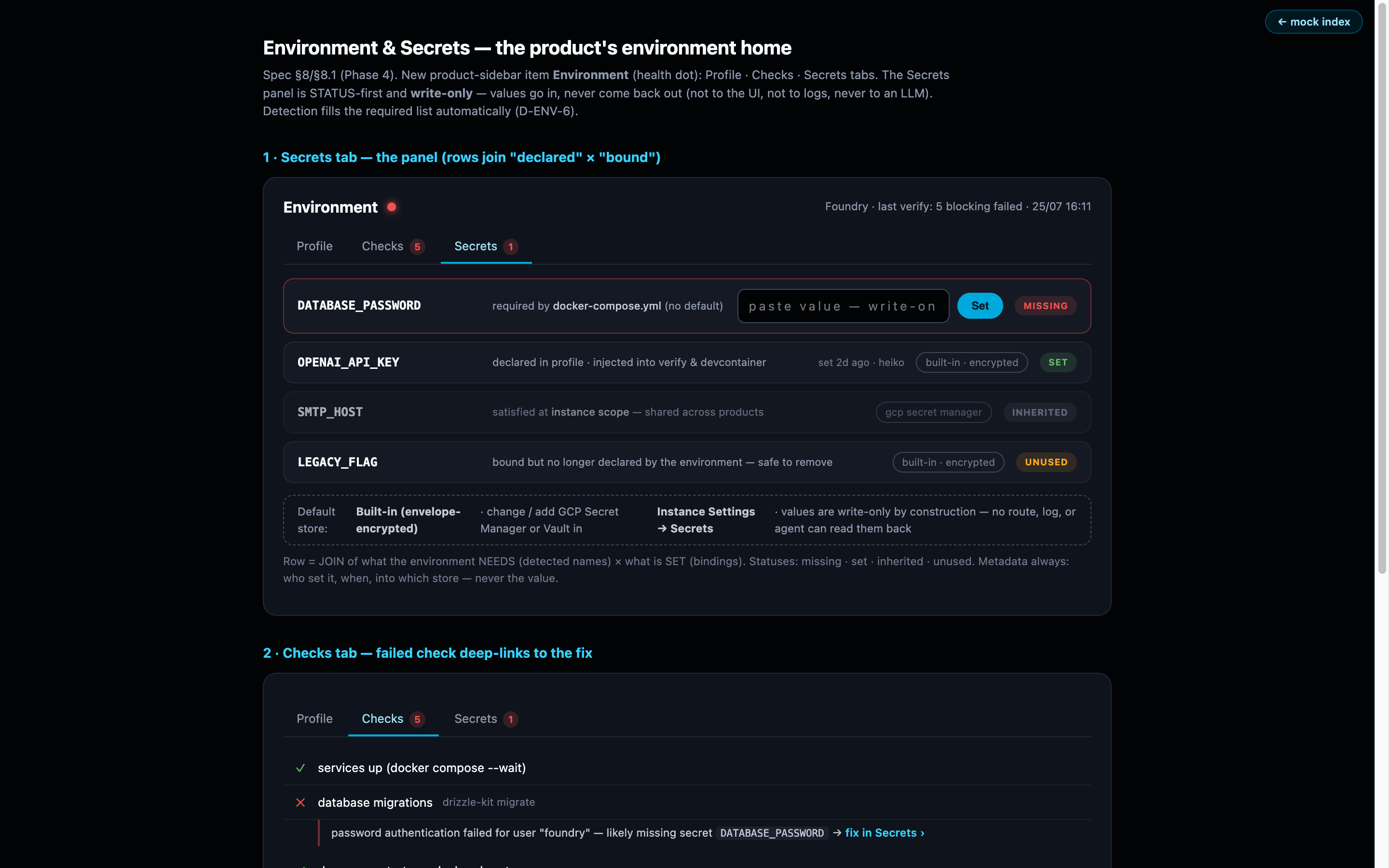
Environment secrets
Some dev environments need secrets (API keys for services the app talks to during tests, for instance). The designed flow keeps them out of the repository and out of the profile: